You have a PDF that should be a simple document — a contract, a report, a résumé — and somehow it is 25MB. Your email client is refusing to send it. Your client cannot open it on their phone. You are wondering what went wrong.
PDF file size is not random. There are specific, identifiable reasons why PDFs become bloated, and once you know which one applies to your file, fixing it is usually straightforward. This guide covers the six most common causes and what to do about each one.
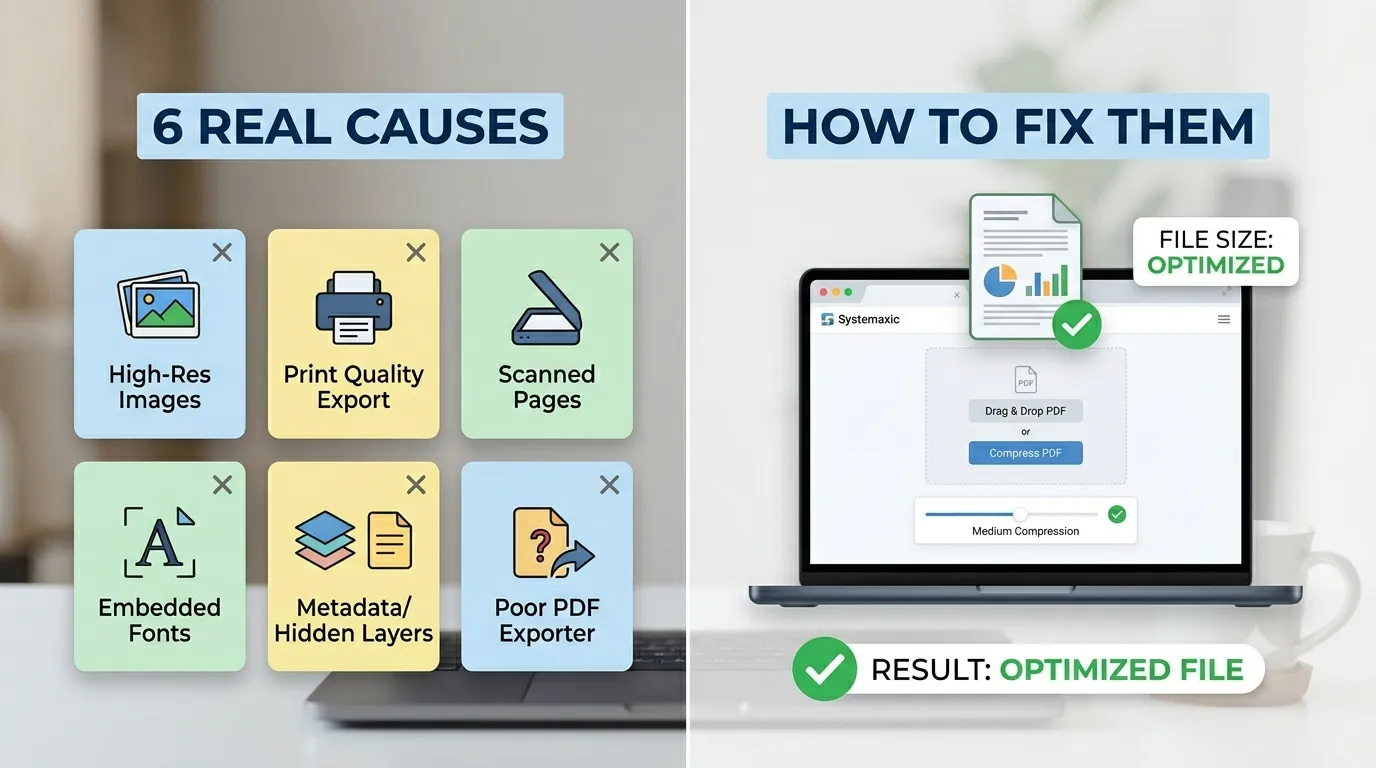
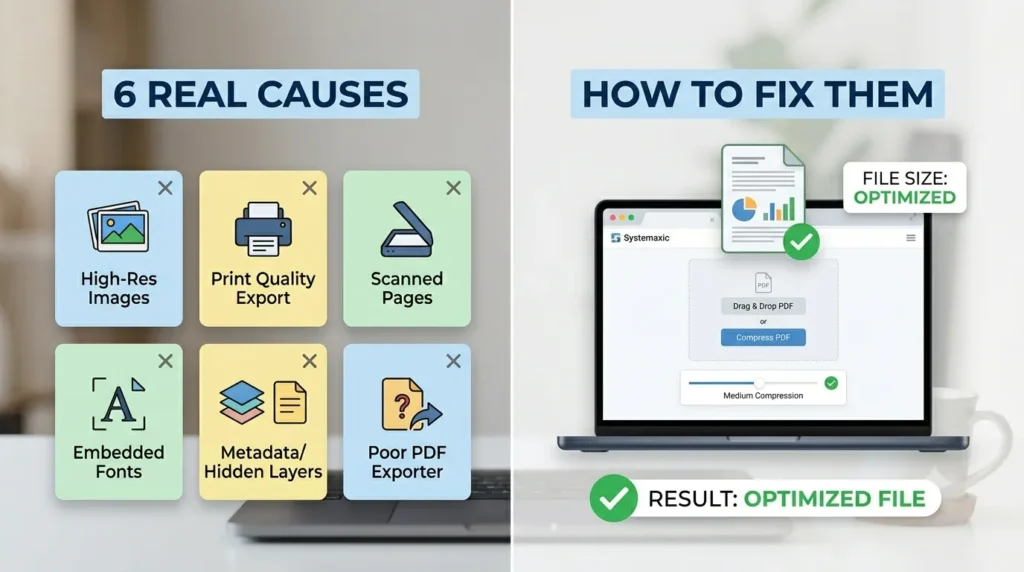
Cause 1: High-Resolution Images Embedded in the PDF
This is responsible for large PDFs more often than anything else. When you create a PDF from a Word document, InDesign file, or presentation, any images you included are embedded at whatever resolution they originally were. A single photograph from a DSLR camera embedded at full resolution (300DPI, 4000×3000px) can add 5–8MB to a PDF by itself.
If your PDF contains multiple product photos, team headshots, charts, or diagrams, they are almost certainly the primary source of the large file size. The fix is to reduce the image resolution before they are embedded, or to compress the PDF after creation — which re-encodes the embedded images at a lower resolution and quality setting.
Cause 2: The PDF Was Exported With “Print Quality” Settings
Most PDF export tools (Microsoft Word, Google Docs, Adobe InDesign) give you options like “Print Quality,” “Standard,” or “Minimum Size.” Print quality PDFs embed images at 300DPI because printing requires that resolution for sharp results. But if this document is only ever going to be read on a screen, there is no reason for 300DPI images. Screen resolution is 72–96DPI. Exporting or re-saving your PDF at “Standard” or screen quality typically reduces file size by 60–80% with no visible difference on a monitor.
Cause 3: Scanned Pages (Image-Based PDFs)
When you scan a physical document and save it as a PDF, the result is not a text document — it is a series of high-resolution images stitched into PDF format. Each scanned page is essentially a photograph, often saved at 300–600DPI. A 10-page scanned contract can easily be 15–30MB for this reason.
These PDFs compress very well because image compression algorithms work efficiently on them. Compressing a scanned-image PDF typically reduces it to 20–30% of its original size without making the text unreadable.
Cause 4: Embedded Fonts
PDFs embed font data to ensure the document looks identical on any device. Some PDF creators embed entire font families rather than just the characters actually used in the document. A single embedded OpenType font can add 200–500KB. If your PDF uses five or six custom fonts, that alone can add 2–3MB. Font subsetting — embedding only the characters that actually appear in the document rather than the entire font — is the proper solution. Most PDF compression tools handle this automatically.
Cause 5: Metadata, Comments, and Hidden Layers
PDFs created from design software like Adobe Illustrator, InDesign, or Figma often carry extra data invisible to readers but adding to file size: editing metadata, revision history, comments, annotations, hidden layers, and thumbnail previews. A PDF saved directly from Illustrator with all layers and metadata intact can be three to four times larger than the same document with those stripped out. If you received a PDF from a designer and it is unexpectedly large, this is often the cause.
Cause 6: The PDF Was Created by a Poor Exporter
Not all PDF creation tools are equal. Some web-to-PDF converters, browser print-to-PDF functions, and older software create inefficient PDFs with redundant data structures, uncompressed streams, or duplicated resources. A 5-page text document that should be 200KB can come out as 4MB when saved through a poorly optimized PDF creator. If your PDF is large but you know it does not contain many images, this is likely the cause.
How to Actually Reduce Your PDF File Size
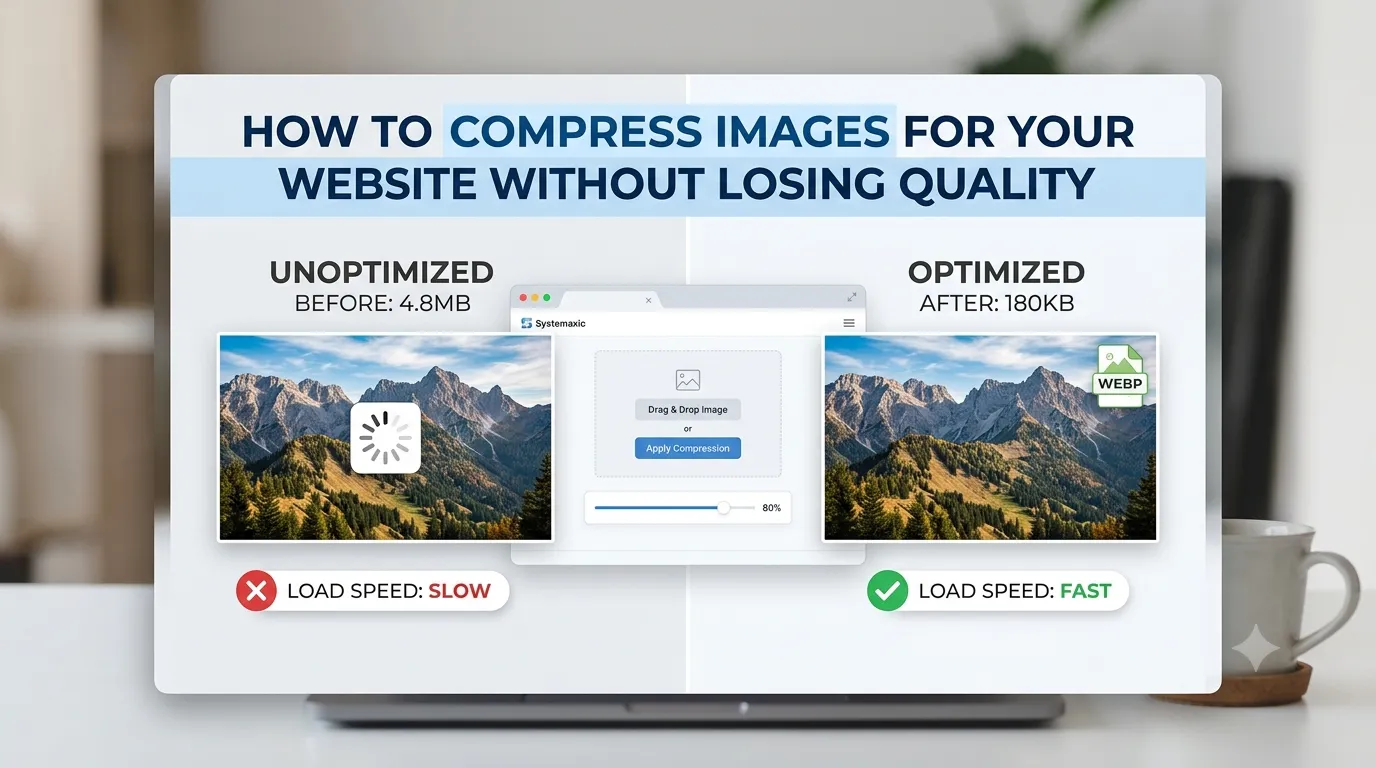
For most PDFs, a browser-based compressor is the fastest and easiest solution. You do not need to install Adobe Acrobat or pay for a subscription.
- Open the Systemaxic PDF Compressor
- Upload your PDF — it accepts files up to 50MB
- Select your compression level. Medium quality works well for most documents
- Enable “Remove metadata” — this is safe for almost all documents
- Click Compress and download the result
What to expect: A 10MB PDF with embedded images typically compresses to 1.5–3MB. A 5MB scanned document usually compresses to 800KB–1.5MB. Text-only PDFs may only reduce by 10–20% since there is less data to compress.
When browser compression won’t help much: If your PDF is already text-only with no images and no embedded fonts, there is simply not much compressible data. In this case, re-exporting from Word at “Standard” quality is the better solution than trying to compress an already-lean file.
What About Adobe Acrobat?
Adobe Acrobat Pro has a “Reduce File Size” function that does a thorough job, including font subsetting, image re-compression, and structure optimization. The limitation is that it costs $24.99/month. For occasional use, a free browser-based tool achieves comparable results for the most common causes. If you regularly need fine-grained control over compression settings, Acrobat is worth it. For most people who just need to email a PDF, a free online compressor is entirely sufficient.
Frequently Asked Questions
Will compressing a PDF make the text harder to read?
No, if you use a quality setting above “Low.” PDF compression primarily targets embedded images, not text. Text in PDFs is stored as vector or font data, which compresses very efficiently without quality loss. You may notice a slight softening of embedded photographs at aggressive compression levels, but standard document text and diagrams are not affected. If your PDF is text-only, compression will have virtually no visible impact on readability.
Is it safe to upload my PDF to an online compressor?
For Systemaxic specifically, files are processed entirely in your browser using client-side technology — your PDF never leaves your device or gets uploaded to a remote server. This makes it safe for personal documents, contracts, and sensitive files. That said, you should always check the privacy policy of any tool before uploading confidential or legally privileged documents. For highly sensitive material, a desktop tool that works completely offline is the most secure option.
What is the maximum email attachment size and how small should my PDF be?
Gmail has a 25MB attachment limit. Outlook allows up to 20MB. Many corporate email servers restrict attachments to 10MB or even 5MB. As a practical target, aim to get your PDF under 5MB for reliable email delivery across all platforms. For documents shared via a download link rather than email, file size matters less — but keeping documents under 2MB still improves the experience for mobile users significantly.
Can I compress a password-protected PDF?
Most browser-based compressors cannot process encrypted PDFs because they cannot access the content structure needed for compression. You would need to remove the password protection first, compress the file, and then re-apply protection if needed. Adobe Acrobat handles this within a single workflow if you need it.
Need to shrink a PDF before sending? Our free compressor works directly in your browser — no upload to servers, no account needed.
Compress Your PDF Free →