Saving an image in the wrong format does not just affect file size — it can make a transparent logo show up with a white box around it, cause a photograph to look blotchy and pixelated, or slow your website down unnecessarily. The format you choose matters, and the right answer depends entirely on what the image is and where it is going.
This guide explains the practical difference between JPG, PNG, and WebP in plain English, with a clear decision guide for each situation.
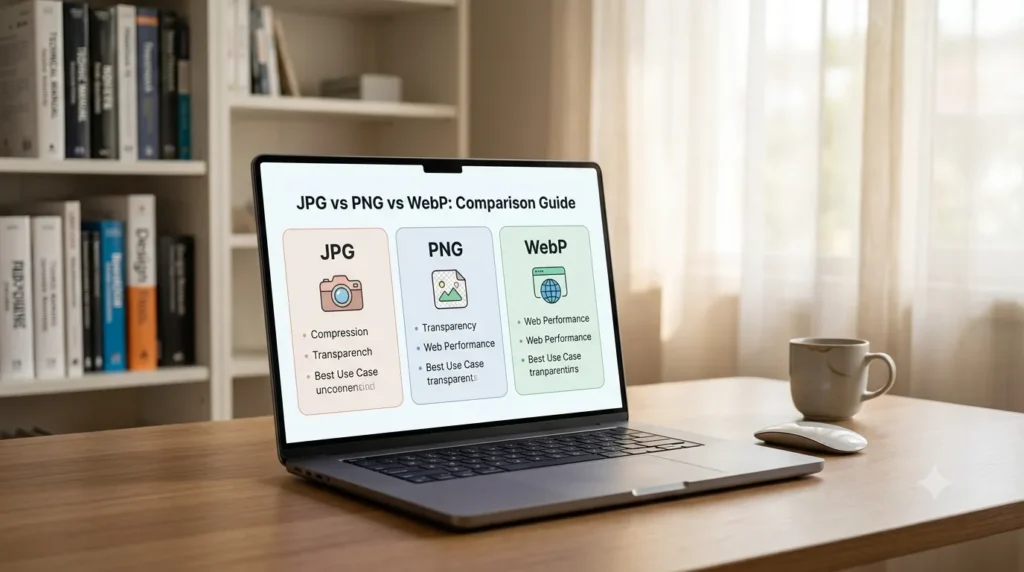
The Short Answer (For People in a Hurry)
| If your image is… | Use this format |
|---|---|
| A photograph or realistic image | WebP or JPG |
| A logo, icon, or graphic with transparency | WebP or PNG |
| A screenshot with text | PNG or WebP |
| Going on a website in 2025 | WebP (almost always) |
| Being sent via email or to an older system | JPG or PNG |
| Being used for print | JPG at high quality, or PDF |
JPG (JPEG) — The Reliable Photograph Format
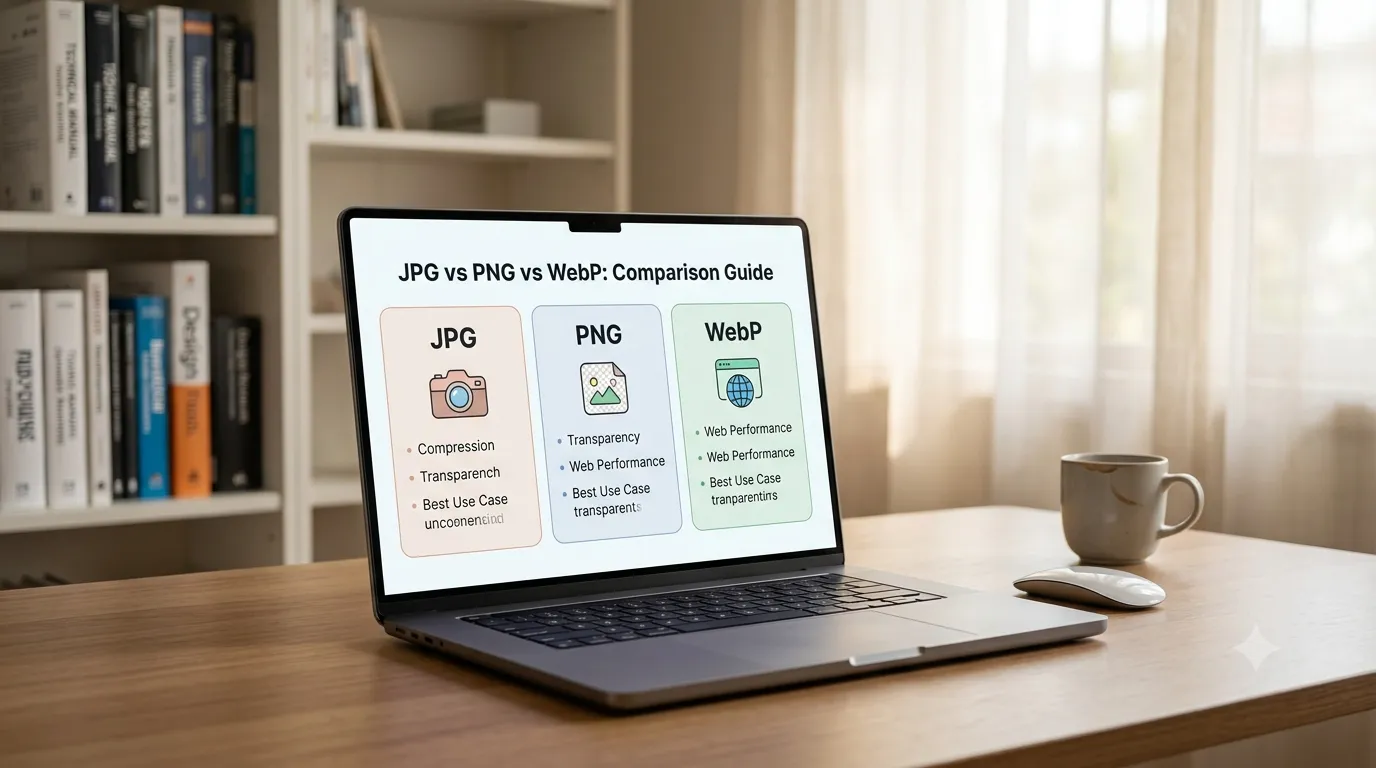
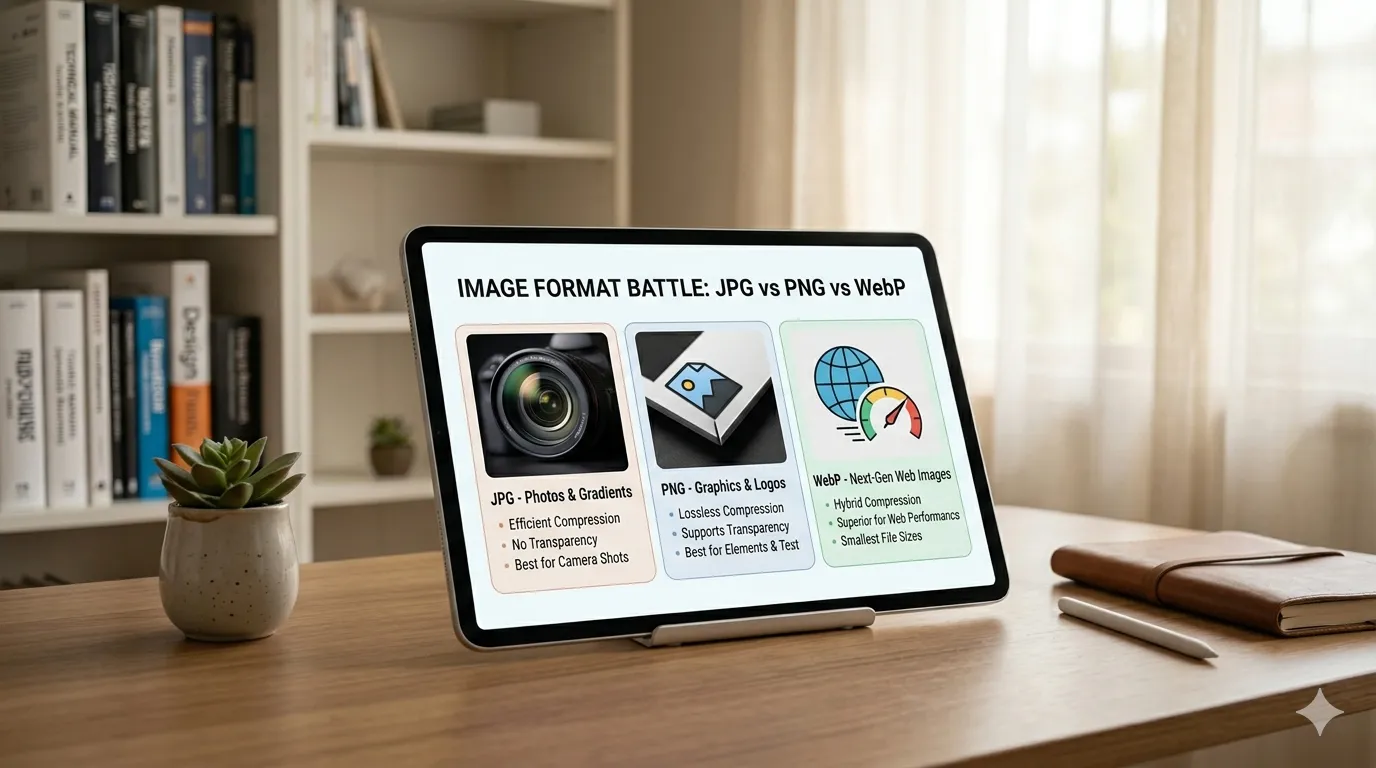
JPG has been the standard for photographic images since the 1990s. It uses lossy compression — meaning it discards some image data to achieve smaller file sizes. For photographs with gradual colour transitions (sky, skin tones, landscape), this works well because the human eye does not notice the small amount of detail removed. A high-quality JPEG photograph at 80% quality looks almost identical to the original while being 3–5× smaller.
The key limitation of JPG is that it does not support transparency. If you save a logo with a transparent background as a JPG, that transparency becomes solid white. For anything that needs a transparent background — logos, product cutouts, icons — JPG is the wrong choice.
JPG also degrades slightly each time you save it. If you open a JPG, edit it, and save it again, the compression algorithm runs again and quality drops a small amount. Always keep an original uncompressed version (PNG or RAW) and export fresh JPGs from it when needed.
PNG — The Transparency and Quality Standard
PNG uses lossless compression — it preserves every pixel perfectly, with no quality loss no matter how many times you save it. This makes it the correct choice whenever image integrity matters: logos, icons, illustrations, screenshots with readable text, and anything requiring a transparent background.
The downside is file size. A PNG photograph will be significantly larger than the same image as a JPG, because lossless compression of photographic content is inefficient. A photograph saved as PNG can be 3–5× larger than the same image as a high-quality JPEG with minimal visible difference. Do not use PNG for photographs on a website — the file size penalty is not worth the imperceptible quality gain.
Where PNG genuinely shines is for graphics with flat colours, text, and hard edges. A logo saved as PNG will have crisp, clean edges. The same logo saved as a JPG at lower quality will show blocky compression artefacts around the edges — particularly noticeable on dark text against light backgrounds.
WebP — The Modern Standard Worth Switching To
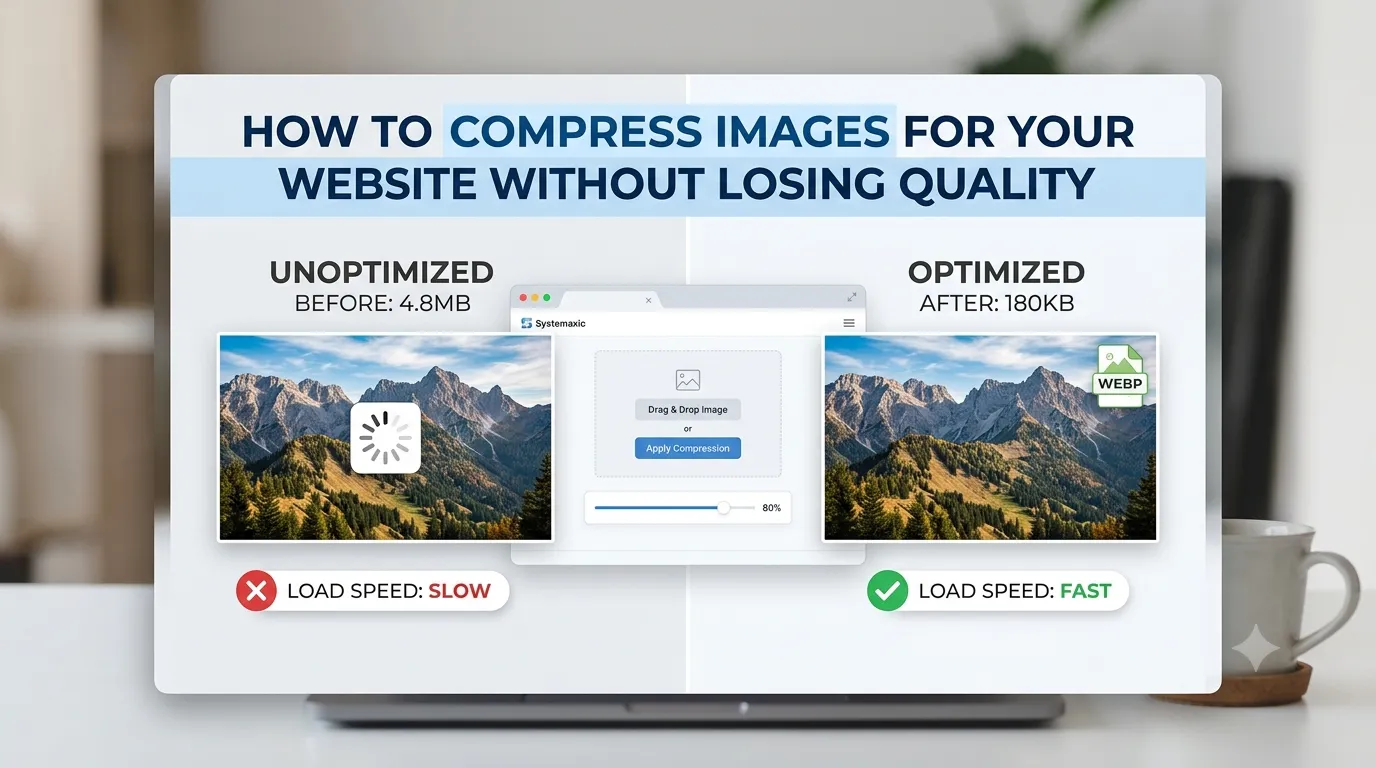
Google developed WebP specifically to solve the limitations of both JPG and PNG. It supports both lossy and lossless compression, supports transparency, and produces files that are 25–35% smaller than JPG at equivalent quality and 20–30% smaller than PNG for graphics and logos. It handles photographs, transparent graphics, and screenshots all reasonably well.
Browser support for WebP is now essentially universal — Chrome, Firefox, Safari (since 2020), Edge, and all major mobile browsers handle it natively. If your website visitors are using modern browsers, which is nearly everyone, WebP is the better choice in almost every situation.
The one area where WebP still has limitations is compatibility outside the browser: some older image editors, email clients, and operating systems still do not open WebP files natively. If you are sharing images via email or distributing files that people will open in desktop applications, JPG and PNG remain safer choices for compatibility.
AVIF and HEIC — What About These?
AVIF is the newest image format and achieves even better compression than WebP — typically 30–50% smaller than JPG at the same quality. Browser support is growing rapidly but is not yet as universal as WebP. For general use, WebP remains the safer modern choice.
HEIC is Apple’s default photo format on iPhones since iOS 11. While it produces very small, high-quality files, it has poor compatibility with non-Apple systems. If you are sharing iPhone photos on a website or with Windows users, converting from HEIC to WebP or JPG first is essential. The Systemaxic HEIC to WebP Converter handles this directly in your browser.
A Practical Decision Guide
Website photographs and hero images: WebP is the best choice. Smaller files, same visual quality, supported by all modern browsers.
Company logo for a website: WebP or PNG. Never JPG — you need sharp edges and likely transparency. WebP will be smaller; PNG has better universal compatibility.
Product images for an ecommerce store: WebP at 80–85% quality. Shopify, WooCommerce, and most modern platforms accept and display WebP correctly.
Screenshot for a blog post or tutorial: PNG if you need maximum readability of text in the screenshot. WebP if file size is a concern and the text is large enough to remain readable at slightly lower quality.
Image to attach to an email: JPG. It is universally compatible and email clients handle it reliably. Size it to under 1MB for email use.
How to Convert Between Formats
If you have images in the wrong format, converting takes seconds. The Systemaxic Image Resizer lets you upload any JPG, PNG, BMP, or WebP image and download it in a different format — including converting to WebP for website use. You can also batch-convert multiple images at once, which is useful when you have a folder of product photos or blog images to update.
Frequently Asked Questions
Does converting JPG to PNG improve quality?
No. Converting a JPG to PNG does not recover the quality lost during JPG compression — it just saves the already-compressed data in a lossless container. The resulting PNG file will be larger than the original JPG but will not look better. To get true quality improvement, you would need the original uncompressed source file. Converting JPG to PNG is only useful if you plan to edit the image and want to avoid further quality loss from repeated saves.
Will switching to WebP break anything on my website?
For virtually all modern websites, no. Over 97% of global web browser users are on browsers that support WebP natively. The only scenario where WebP could cause issues is if your site has visitors using Internet Explorer (under 0.5% market share) or a heavily customized enterprise browser. If your site serves general consumers on standard devices, switching to WebP is safe and beneficial.
Can I use WebP for print?
Technically yes, but it is not recommended. Most professional print services and design software (Adobe Illustrator, InDesign, print labs) do not natively support WebP. For anything going to print, use JPG at 300DPI or higher, or export as a TIFF. WebP is a screen format optimized for web delivery. For print, the format matters less than the resolution — ensure your images are at least 300 pixels per inch at the final print size.
Need to convert an image to WebP, JPG, or PNG? Our free converter handles bulk batches instantly.
Convert Image Format Free →