
You took photos on your iPhone, transferred them to your Windows computer or tried to upload them to a website, and suddenly you have files ending in .heic that nothing will open. Your email client shows a blank image. Your website upload rejects the format. Your client cannot view the photo you sent them.
This is one of the most common compatibility frustrations for iPhone users. The fix is straightforward once you understand what HEIC is and why it causes problems outside the Apple ecosystem.
What Is HEIC and Why Does Apple Use It?
HEIC stands for High Efficiency Image Container. Apple introduced it as the default photo format for iPhones starting with iOS 11 in 2017. The reason Apple made the switch is file size: HEIC files are approximately 40–50% smaller than equivalent JPEG files at the same visual quality. For an iPhone with limited storage, this matters — you can store roughly twice as many photos in the same space.
The problem is that HEIC is not a universal standard the way JPG has been for decades. Windows does not natively open HEIC files without a paid codec from the Microsoft Store. Most websites do not accept HEIC uploads. Many design tools, older applications, and online platforms do not recognise the format. So while Apple’s choice makes sense for device storage, it creates real compatibility problems the moment photos leave an iPhone.
Three Ways to Stop HEIC From Being a Problem
Option 1: Change Your iPhone to Save as JPG Directly
If you want to prevent the problem at the source, you can switch your iPhone camera to save photos as JPEG instead of HEIC:
- Open Settings on your iPhone
- Scroll down to Camera
- Tap Formats
- Select Most Compatible instead of High Efficiency
From this point forward, all new photos will be saved as JPEG. The trade-off is that photos will take up more storage space on your device — roughly double the size of HEIC files. If storage is a concern, converting HEIC files when needed is a better approach than changing the default permanently.
Option 2: Convert HEIC Files Online When Needed
For HEIC photos already on your device or computer, the fastest solution is an online converter. This is useful when you only occasionally need to convert photos and do not want to change your camera settings permanently.
- Open the Systemaxic HEIC to WebP Converter
- Upload your .heic file — you can upload multiple files at once for batch conversion
- Select your output format: WebP for web use, or JPG for universal compatibility
- Download the converted files
The entire conversion happens in your browser. Your photos are not uploaded to a server — which matters for personal photos where privacy is a concern.
Option 3: Use Apple’s Built-In Sharing Conversion
When you AirDrop photos from an iPhone to a Mac, iOS automatically converts them to JPEG during the transfer if the receiving device does not support HEIC. Similarly, if you share photos from the iPhone Photos app using the share sheet, iOS often converts to JPEG automatically. This built-in solution works well if you are entirely within Apple devices, but it does not help when transferring to Windows PCs or uploading to websites.
HEIC vs JPG vs WebP — Which Should You Convert To?
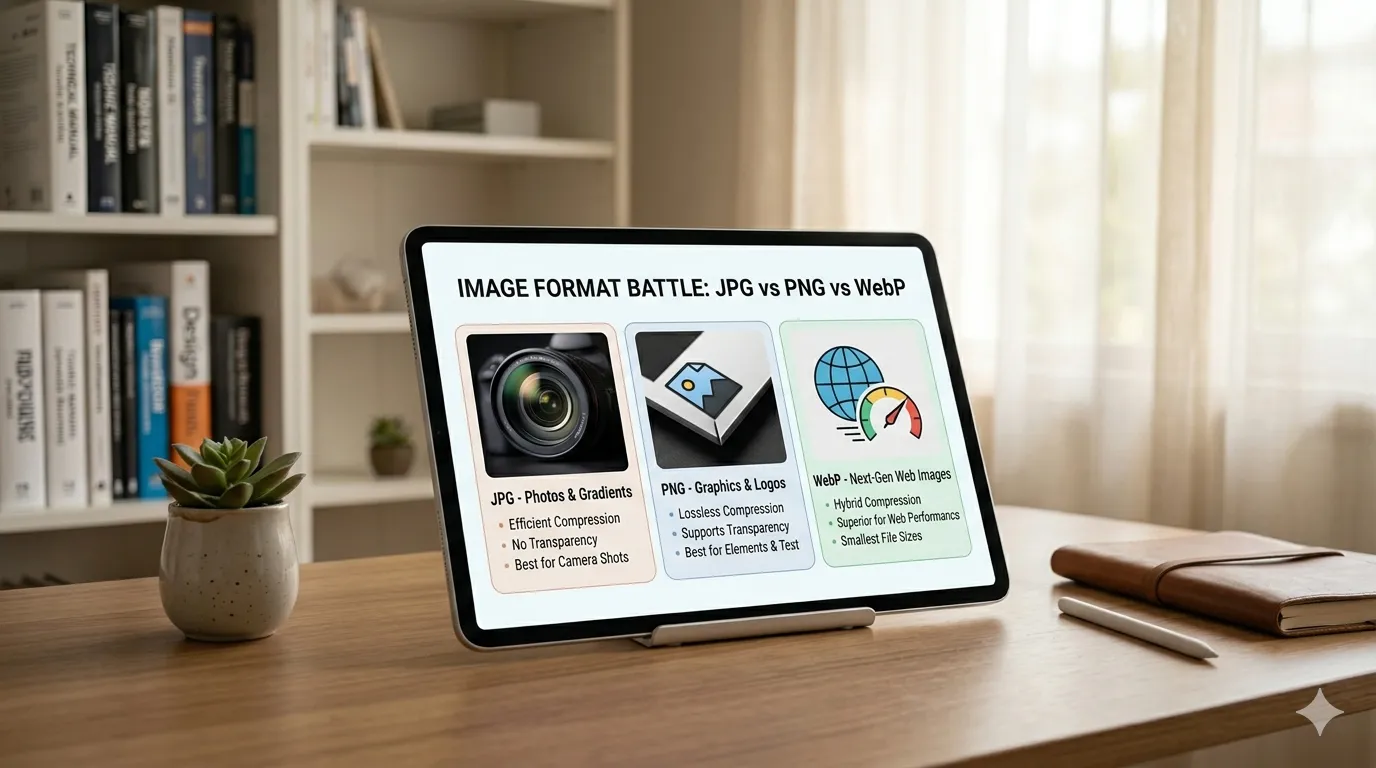
Convert to JPG when: You are sharing photos via email, sending to someone who may be on an older system, uploading to a platform with specific JPG requirements, or submitting photos to a print service. JPG is the safest choice for maximum compatibility across all devices and platforms.
Convert to WebP when: You are uploading photos to a website, WordPress blog, or online store. WebP gives you smaller file sizes than JPG at the same quality, which benefits page load speed. All major browsers and modern web platforms support WebP.
Stay as HEIC when: You are keeping the photos on Apple devices only and do not need to share them externally. HEIC preserves the best quality at the smallest size for Apple-to-Apple workflows.
What About AVIF?
AVIF is a newer format similar to HEIC in concept — high efficiency, excellent quality at small sizes. The Systemaxic converter also handles AVIF to WebP and AVIF to JPG conversion. AVIF files, like HEIC, have limited compatibility outside of modern browsers and the latest versions of image editing software. If you encounter .avif files with compatibility problems, the same conversion workflow applies as for HEIC.
Batch Converting HEIC Photos
If you have transferred a large folder of iPhone photos to your computer and need to convert all of them, doing them one at a time is impractical. The Systemaxic HEIC converter supports uploading multiple files simultaneously and downloading the converted versions as a batch. This makes it practical to convert a full holiday album or product photography session in one operation rather than processing each photo individually.
💡 Workflow tip for photographers: After transferring iPhone photos to your computer, run the whole batch through the HEIC-to-JPG converter before importing them into Lightroom, Google Photos, or any editing software. You will avoid format compatibility errors and end up with files that work universally across every platform and tool you use.
Frequently Asked Questions
Does converting HEIC to JPG reduce photo quality?
There is a small quality reduction, but it is generally imperceptible for most uses. HEIC and JPG both use lossy compression, so converting between them involves re-encoding the image data. Converting at a high quality setting (80–90%) produces a JPG that is visually indistinguishable from the original HEIC when viewed on screen. The only scenario where the quality difference becomes noticeable is if you are making very large prints and examining them closely at full size. For all digital uses — websites, social media, email, presentations — high-quality JPG conversions are perfectly adequate.
Why can’t Windows open HEIC files without extra software?
HEIC uses the HEVC (H.265) video codec for compression, and Microsoft requires a licence fee to include HEVC support in Windows by default. To keep the operating system price-competitive, Microsoft chose not to bundle this codec. The result is that Windows 10 and 11 users need to either install the HEVC Video Extensions from the Microsoft Store or use a converter to change HEIC files to a universally supported format. Most users find that converting to JPG is simpler and free, compared to paying for the codec.
Are HEIC photos private when I convert them online?
Systemaxic’s HEIC converter processes files locally in your browser using JavaScript — your photos are not sent to any server. You can verify this by checking your browser’s network activity while converting: no upload requests are made to external servers. If you are converting sensitive personal photos, always check whether the tool processes files locally (client-side) or uploads them to a server before using it.
Can I convert HEIC files on a phone, or only on a computer?
You can convert HEIC files on any device with a modern browser — including Android phones and tablets. On an Android device, you can access HEIC files if they have been transferred or are accessible through cloud storage, then use the web-based converter directly in your mobile browser. On an iPhone, the simplest solution is usually to change the camera format setting as described above, since HEIC compatibility is much better within the Apple ecosystem itself.
Convert HEIC or AVIF photos to JPG or WebP instantly — batch conversion, browser-based, no upload to servers.
Convert HEIC Files Free →