
The number of free online tools available today is genuinely impressive — but so is the number of tools that promise “free” and then charge you for the one feature you actually needed. This list cuts through that. Every tool listed here is either fully free with no significant paywalled catch, or has a free tier that covers the most common real-world use cases.
These are tools worth keeping open in a browser tab or bookmarked for weekly use — the kind that save you 20 minutes every time you need them.
1. Image Resizer — Systemaxic
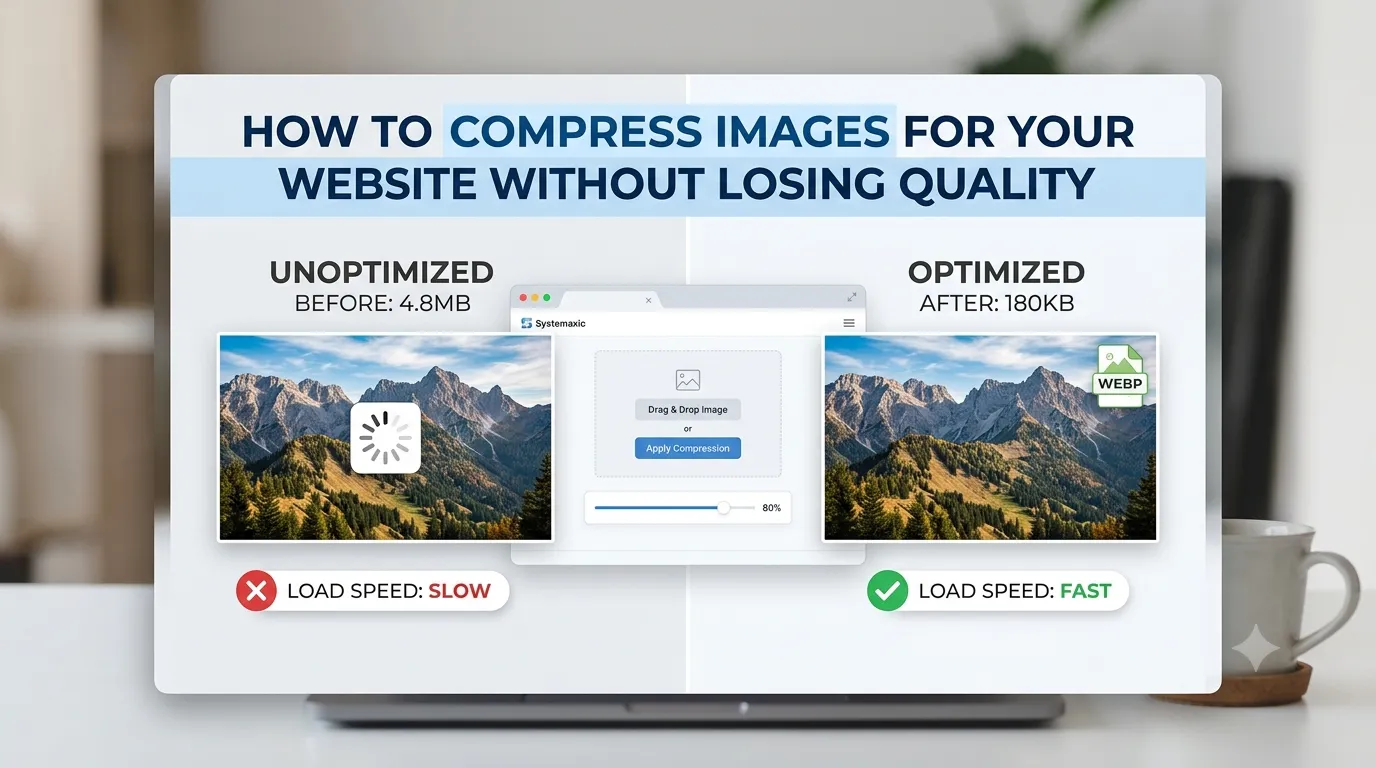
Resizing and compressing images is a near-daily task for anyone running a website, managing social media, or sending files via email. Systemaxic’s Image Resizer handles JPG, PNG, WebP, GIF, and BMP files in-browser with no upload to external servers. You can set exact pixel dimensions, choose your output format, and control quality level — all in one step. It also supports batch processing, which is the feature that saves the most time when you have ten or more images to resize for a project.
Best for: Web developers, ecommerce sellers, bloggers, social media managers.
2. PDF Compressor — Systemaxic
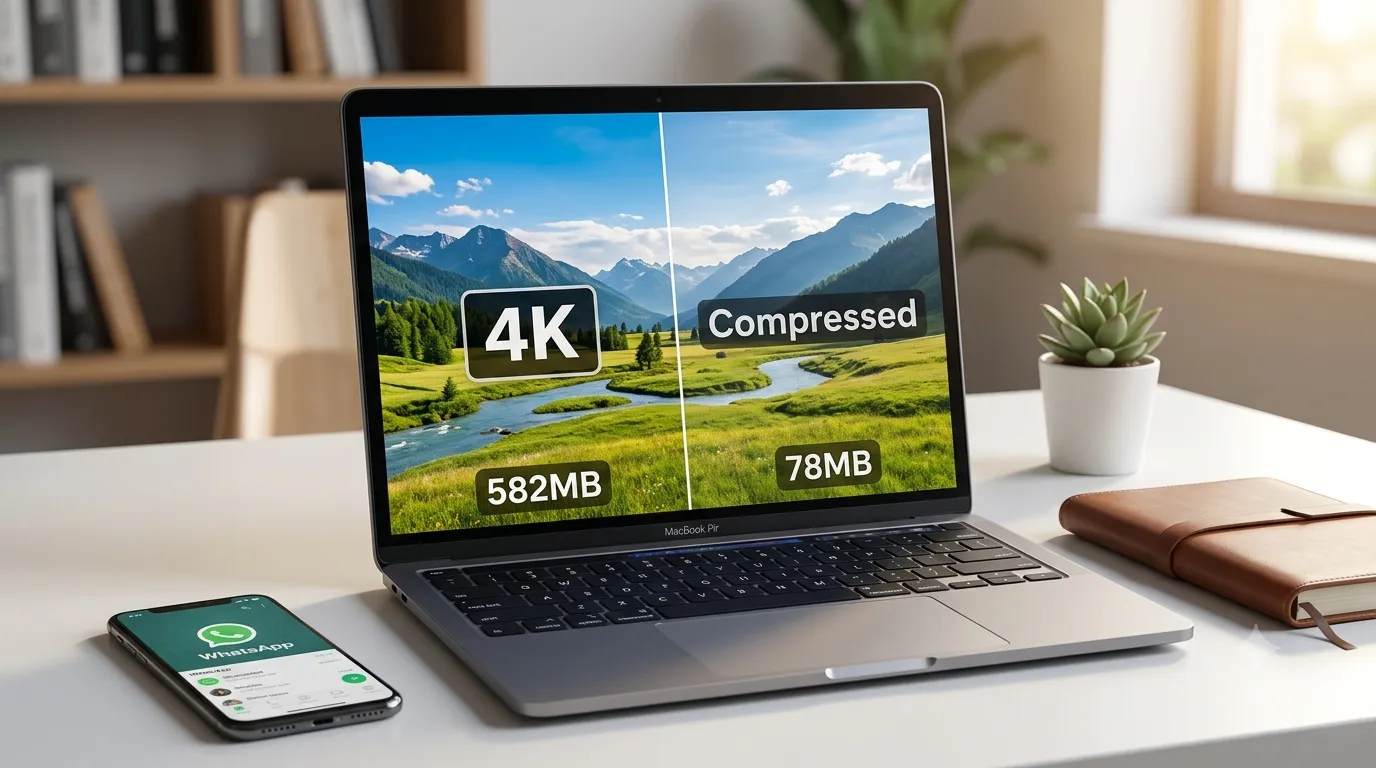
Emailing a large PDF is one of those problems that comes up constantly. The Systemaxic PDF Compressor reduces file size by re-encoding embedded images, removing metadata, and optimizing the document structure — all without you needing to understand any of that. Upload, compress, download. Files are processed client-side, so sensitive documents stay on your device.
Best for: Anyone who regularly sends PDFs via email, submits documents through client portals, or shares reports and contracts.
3. Background Remover — Systemaxic
Removing a background from a product photo or logo used to require Photoshop skills. The Systemaxic Background Remover uses AI segmentation to isolate the subject and outputs a transparent PNG. Results are clean for standard subjects — products against plain backgrounds, logos on solid colours, headshots. For complex subjects like detailed hair or transparent objects, results are a good starting point that may need minor refinement.
Best for: Ecommerce sellers preparing product photos, marketers creating graphics, anyone needing a transparent PNG version of a logo or photo.
4. Google PageSpeed Insights
If you have a website, you should check it in PageSpeed Insights regularly. Google’s free tool analyses your page and gives you a performance score plus specific, actionable recommendations — which images to compress, which scripts are blocking load, which fonts are slowing things down. It tests both mobile and desktop performance separately. The recommendations are directly tied to Google’s Core Web Vitals, which are ranking factors.
URL: pagespeed.web.dev — Best for: Website owners, developers, SEO professionals.
5. Canva (Free Tier)
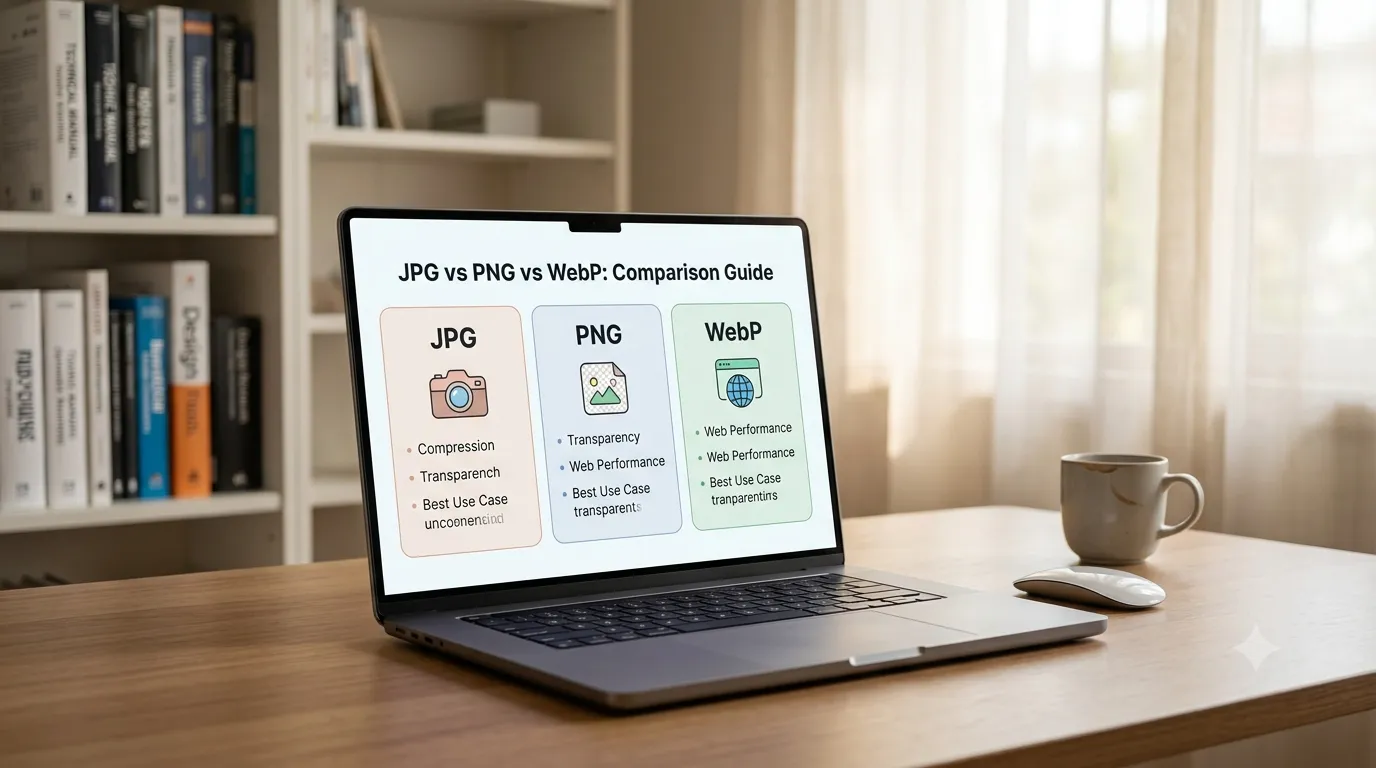
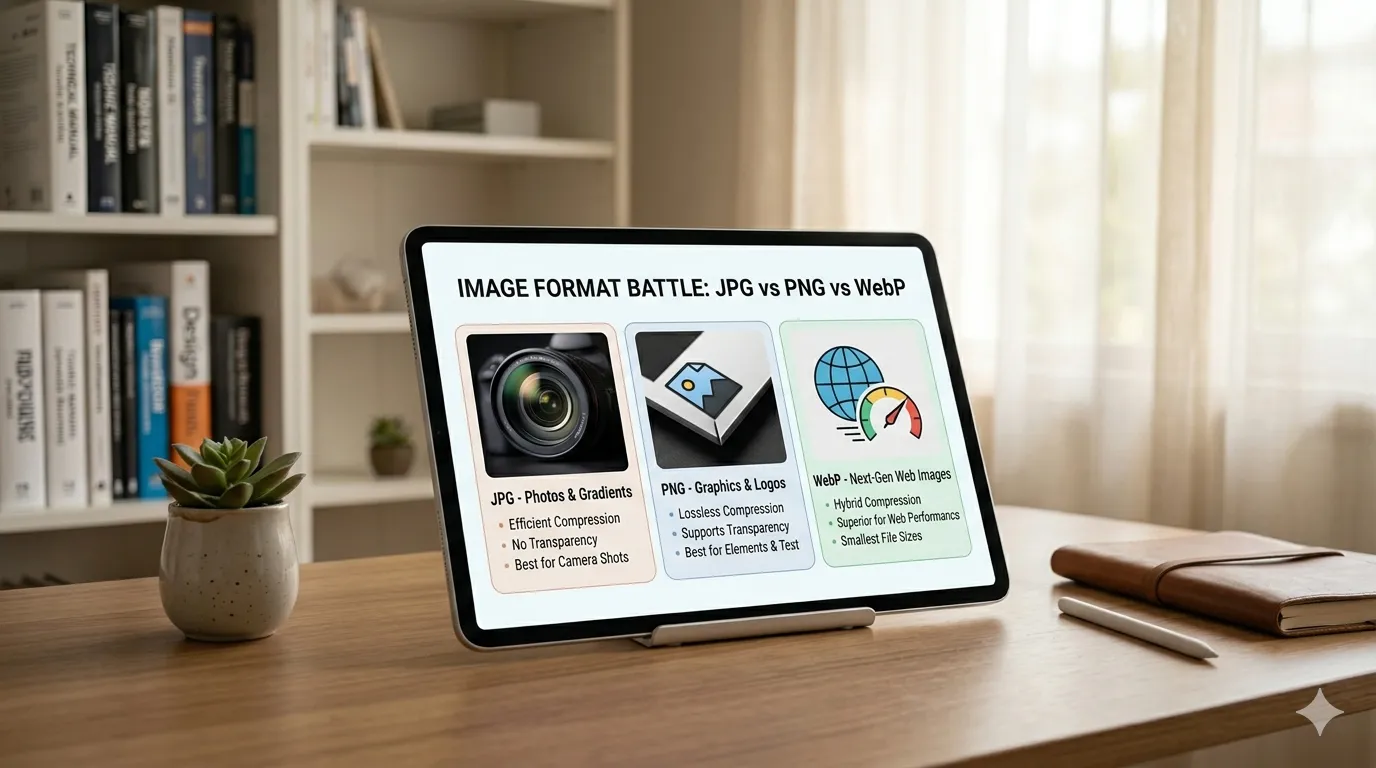
Canva’s free tier covers the vast majority of what small businesses need: social media graphics, presentations, flyers, business cards, and basic photo editing. The template library is extensive and the drag-and-drop interface requires no design skill. The free tier does not include premium templates, certain fonts, or background removal — but for most everyday design tasks, it is fully sufficient. It is worth noting that Canva exports are typically PNG or JPG, which you may then want to compress further using a dedicated tool before uploading anywhere.
Best for: Marketing materials, social media content, non-designers who need professional-looking graphics.
6. Grammarly (Free Tier)
For anyone writing client emails, proposals, website copy, or content, Grammarly’s free browser extension catches grammar errors, improves sentence clarity, and flags awkward phrasing in real time as you type. The free tier covers core grammar and spelling — the paid tier adds tone detection, clarity suggestions, and plagiarism checking. Even the free version meaningfully improves the quality of written communication, which matters for professional credibility.
Best for: Freelancers writing proposals or client communications, content creators, anyone who writes professionally in English.
7. WeTransfer (Free Tier)
When a file is too large to email, WeTransfer solves the problem without requiring either party to have an account. Upload a file up to 2GB, get a shareable link, send it. The recipient clicks the link and downloads directly. The free tier links expire after 7 days, which is usually plenty of time. For sending large video files, design assets, or high-resolution photos to clients, this is one of the most frictionless tools available.
Best for: Sending large files to clients, sharing project deliverables, transferring files between devices without cloud storage.
8. Age Calculator — Systemaxic
This is one of those tools that seems trivial until you actually need it. The Systemaxic Age Calculator calculates exact age in years, months, and days from a date of birth — useful for HR professionals handling employment eligibility, healthcare workers recording patient information, legal professionals checking age thresholds, or parents tracking developmental milestones. It also calculates time elapsed between any two dates, which has broader uses in project management and financial calculations.
Best for: HR managers, healthcare professionals, legal and compliance work, administrative tasks.
9. Squoosh (by Google)
Squoosh is Google’s own open-source image compression tool and it is exceptionally good at one specific thing: giving you detailed, side-by-side control over image compression at the file format level. You can compare AVIF vs WebP vs MozJPEG at different quality settings with a live before-and-after preview. It is more technical than a one-click compressor but more transparent about what it is doing and why. It processes everything locally in your browser.
URL: squoosh.app — Best for: Developers, designers, and power users who want granular control over image compression output.
10. Notion (Free Tier)
Notion’s free tier offers more capability than most small businesses will ever fully use. It works as a note-taking tool, project tracker, simple database, wiki, and document repository — often replacing the need for several separate tools. For freelancers, it works especially well as a central hub for client notes, project status, and invoicing records. The learning curve is real but worth the investment once the habit forms.
Best for: Freelancers and solo operators managing multiple clients, small teams that need shared documentation and project tracking.
A Note on “Free” Tools
Every tool on this list has been selected because the free tier is genuinely useful — not a stripped-down demo designed to frustrate you into upgrading. That said, it is always worth reading the terms of service for any free tool you use with client files or sensitive business data. Understand where your files go after upload, how long they are retained, and whether the tool’s privacy policy matches your business obligations.
Frequently Asked Questions
Are browser-based tools safe for confidential files?
It depends on how the tool processes files. Client-side tools — those that run entirely in your browser without uploading anything to a server — are the safest option for confidential or sensitive files. Systemaxic’s tools (image resizer, PDF compressor, background remover) all process files locally in your browser. For tools that do require server upload (like WeTransfer or some PDF converters), files are typically deleted from servers after a set period. Always check the privacy policy before uploading legally sensitive or client-confidential material.
Do free tools put watermarks on exported files?
Some do, some do not. Canva’s free tier does not watermark downloads made from non-premium templates. Systemaxic’s tools do not add watermarks to any exported files. Many other free logo and design tools do watermark free downloads to push upgrades. Before committing to a workflow using any free tool, download a test file and check it for watermarks before presenting it to a client or publishing it publicly.
What is the difference between a browser-based tool and a desktop app?
Browser-based tools run inside your web browser with no installation required. They are accessible from any device with internet access and update automatically. Desktop apps are installed on your computer, often work offline, and can handle larger files and more complex processing. For occasional use and most everyday tasks, browser-based tools are more convenient. For professional workflows that require processing very large files, complex batch operations, or offline capability, desktop software is usually the better choice.
All Systemaxic tools on this list are free, work in-browser, and require no account or signup.
Explore All Free Tools →