A professionally designed logo from a branding agency can cost anywhere from $500 to several thousand dollars. For a new business, a side project, or a startup still testing the market, that investment is hard to justify before you have paying customers. This is exactly why free online logo makers have become so widely used — and why it is worth being realistic about what they can and cannot produce.
This guide gives you an honest picture of what free logo tools are genuinely good for, what their limitations are, and how to get the best possible result without spending money.
What Free Logo Tools Are Actually Good For
Free logo makers are excellent for getting a working, usable logo quickly when you are in the early stages of a business. A logo that you can put on your website, social media profiles, and business cards — something that represents your brand visually — is far better than no logo at all. For many small businesses, a logo made with a free tool looks perfectly professional in the contexts where it actually matters.
They are also useful for exploring directions before committing to a professional designer. Trying five or six logo concepts in a free tool gives you a clearer sense of what you actually want — the icon style, the typography, the colour palette — before you brief a designer. This saves you money on designer revisions and produces better briefs.
What Free Logo Tools Cannot Do Well
Being honest about limitations helps you avoid frustration. Free logo makers have three genuine weaknesses:
Uniqueness. Most free logo tools use shared libraries of icons and templates. If you pick a common icon from a popular tool, there is a real chance another business in your category is using the same or very similar logo. For a local or niche business this matters less. For a brand you are building seriously over the long term, a truly unique logo eventually becomes important.
Scalability. Many free tools export logos as PNG files at a fixed pixel size. PNG logos look fine on screens but become pixelated when printed at large sizes — on banners, merchandise, or signage. Professional logos are delivered as SVG or AI vector files that scale to any size without quality loss. Some free tools do offer SVG export, but often lock it behind a paid tier.
Customisation depth. Free tools give you control over colours, text, and which icon to use. They rarely let you reshape icons, adjust letterforms, or create truly custom graphic elements. The logo you create will be within the aesthetic boundaries of their template library.
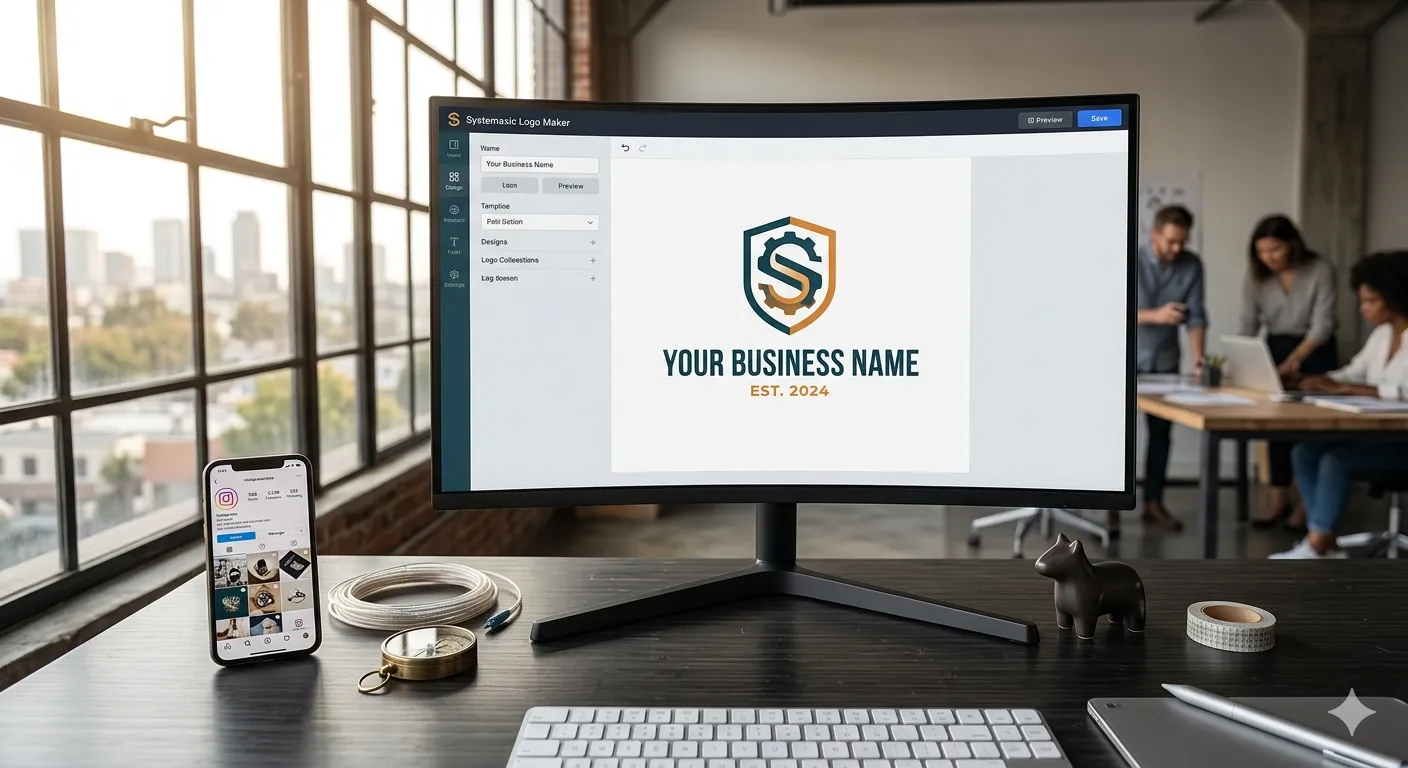
Step-by-Step: Creating a Logo with Systemaxic Logo Maker
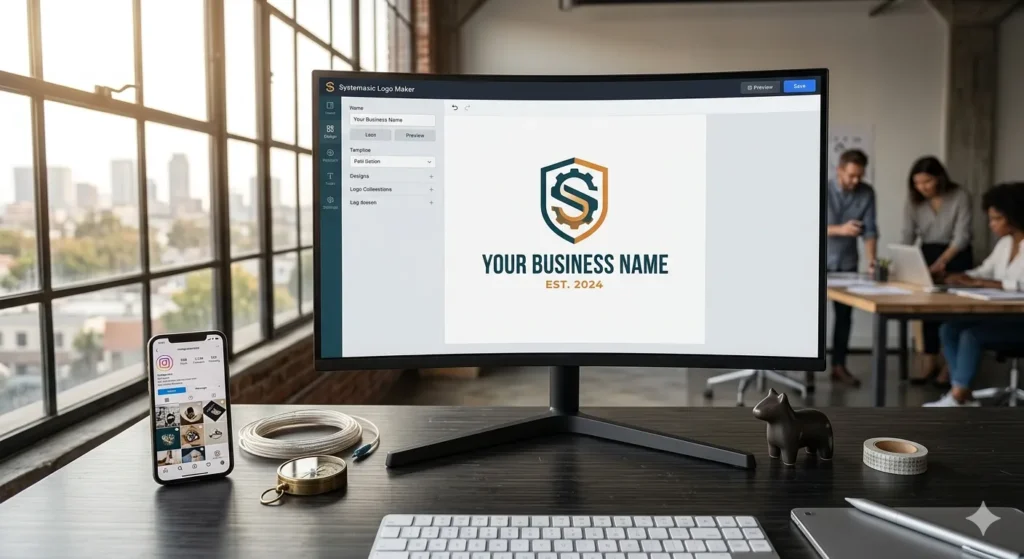
- Go to the Systemaxic Logo Maker
- Enter your business name and optional tagline
- Browse through icon and style suggestions — look for icons that relate to your industry or the feeling you want to convey, not necessarily a literal representation of what you do
- Select a colour palette — more on this below
- Adjust the font — choose one that matches your brand personality (see guidance below)
- Download your logo in the formats available
💡 Download tip: Always download the PNG version with a transparent background — not the version with a white square behind it. A transparent PNG logo can be placed on any background colour on your website, presentations, or printed materials without an awkward white box around it.
Choosing Colours That Actually Work
Colour is where most DIY logos go wrong. Here are practical rules that produce better results:
Use two colours maximum — one primary and one accent. More than two colours in a logo looks amateur on most brand applications. The biggest, most recognisable logos in the world (Nike, Apple, FedEx) use one or two colours.
Avoid neon or overly saturated colours — they look unprofessional and are difficult to print consistently. Slightly desaturated, muted versions of colours look more premium.
Check contrast — your logo should be readable on both white and dark backgrounds. Test it by placing your logo on a dark navy or black background. If it disappears or looks muddy, you need to reconsider the colours.
Broad colour associations by industry: Blue signals trust and professionalism (finance, tech, healthcare). Green signals nature, health, or sustainability. Orange and yellow signal energy and creativity. Black and grey signal premium and luxury. Red signals urgency or passion. These are general patterns — breaking them deliberately can work too, but it requires more design skill to pull off effectively.
Choosing Fonts That Look Professional
Typography is as important as the icon. A poorly chosen font can undermine an otherwise good logo concept. Here are the main categories and when to use each:
Sans-serif fonts (clean, no small strokes at letter ends — like Helvetica, Futura, Montserrat): Work well for modern, minimal, and tech brands. The most versatile choice for small businesses.
Serif fonts (with small strokes at letter ends — like Georgia, Times, Playfair): Signal tradition, authority, and professionalism. Good for law firms, financial services, publishers, and heritage brands.
Script / handwritten fonts: Signal creativity, personality, and warmth. Work well for food businesses, creative agencies, and personal brands. Use with caution — readability is often sacrificed at small sizes.
Display / decorative fonts: Very distinctive but very specific. Use only when the font choice directly reflects the brand personality, and always verify it is readable at thumbnail size.
What to Do After Creating Your Logo
Once you have your logo downloaded, there are a few immediate things to do:
Remove the background if needed. If your tool exported a logo with a white background and you need a transparent version, run it through the Systemaxic Background Remover to get a clean transparent PNG.
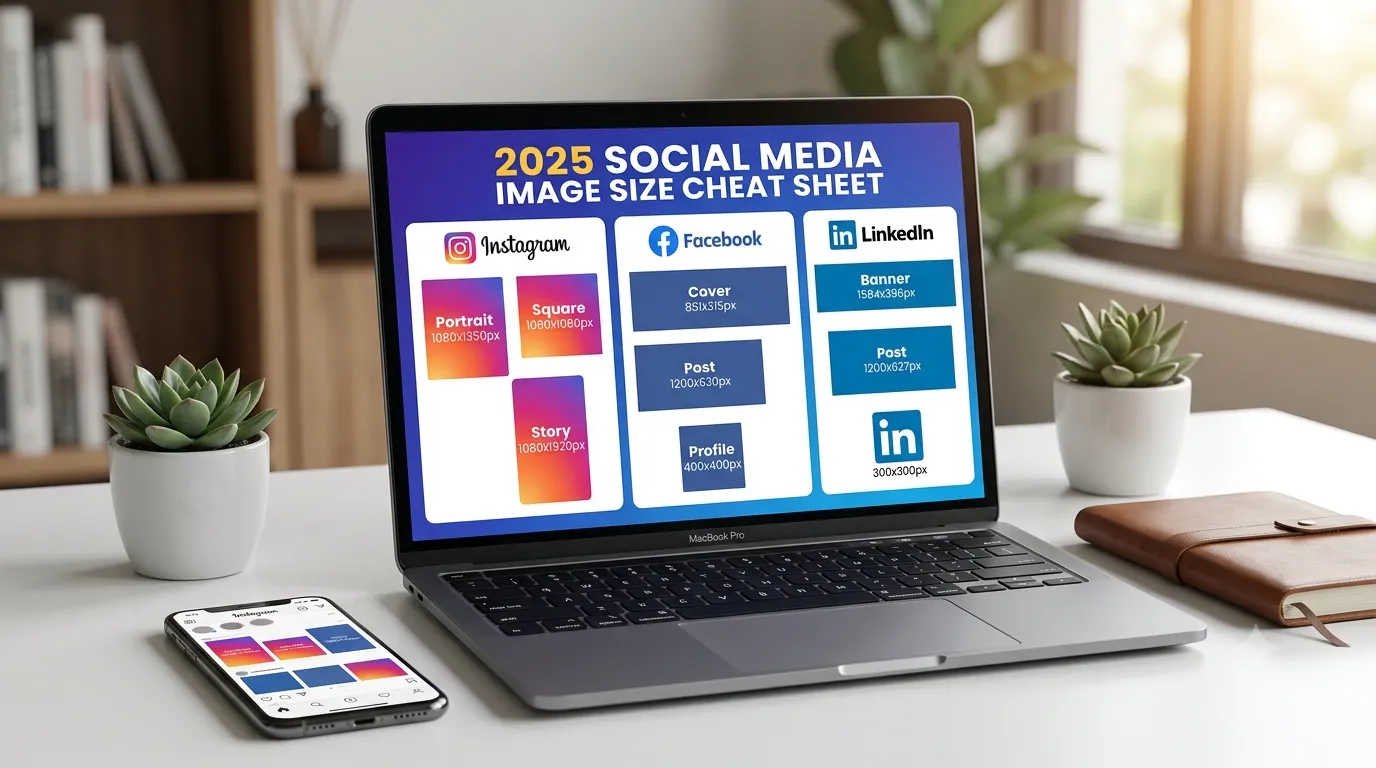
Resize for different uses. You will need different sizes for different contexts — a small version for favicon use (32×32px), a medium version for social media profile photos (400×400px), and a larger version for website headers. Use the Image Resizer to create all three from your single downloaded logo file.
Test on different backgrounds. Place your logo on a white background, a dark background, and a coloured background. A good logo should work on all three. If it only looks right on one background, that is a limitation to address before committing to the design.
When to Upgrade to a Professional Designer
A free logo maker is appropriate for getting started. Here are the signs you have outgrown it:
- You need your logo on physical merchandise, signage, or large-format print
- You are raising investment or pitching to enterprise clients
- Your brand identity needs to be distinctive and protectable as a trademark
- You need a full brand kit — logo variations, brand guidelines, icon sets
At that stage, a professional designer or branding studio is the right investment. Many freelancers on platforms like Fiverr or 99designs offer entry-level logo packages at accessible prices if a full agency is outside your budget.
Frequently Asked Questions
Can I trademark a logo made with a free logo maker?
Potentially, but with significant caveats. Trademark protection applies to distinctive marks — logos that are unique enough to identify your brand specifically. If your free logo uses a generic icon that the tool also offers to thousands of other users, it may not meet the distinctiveness threshold for trademark registration. Additionally, the terms of service of some free logo tools retain rights to the base design elements, which can complicate ownership claims. If trademark protection matters to your business, consult a trademark attorney before investing in brand building around a free logo.
Will a free logo look unprofessional?
Not necessarily. The quality of the result depends more on the design decisions made — colour, typography, simplicity — than on whether a professional designer or a free tool created it. A clean, simple logo with a sensible colour palette and readable font made in a free tool can look completely professional in most digital contexts. The limitations of free tools become more apparent for complex designs, large-format print, and high-scrutiny contexts like investor presentations or packaging design.
What file format should I save my logo in?
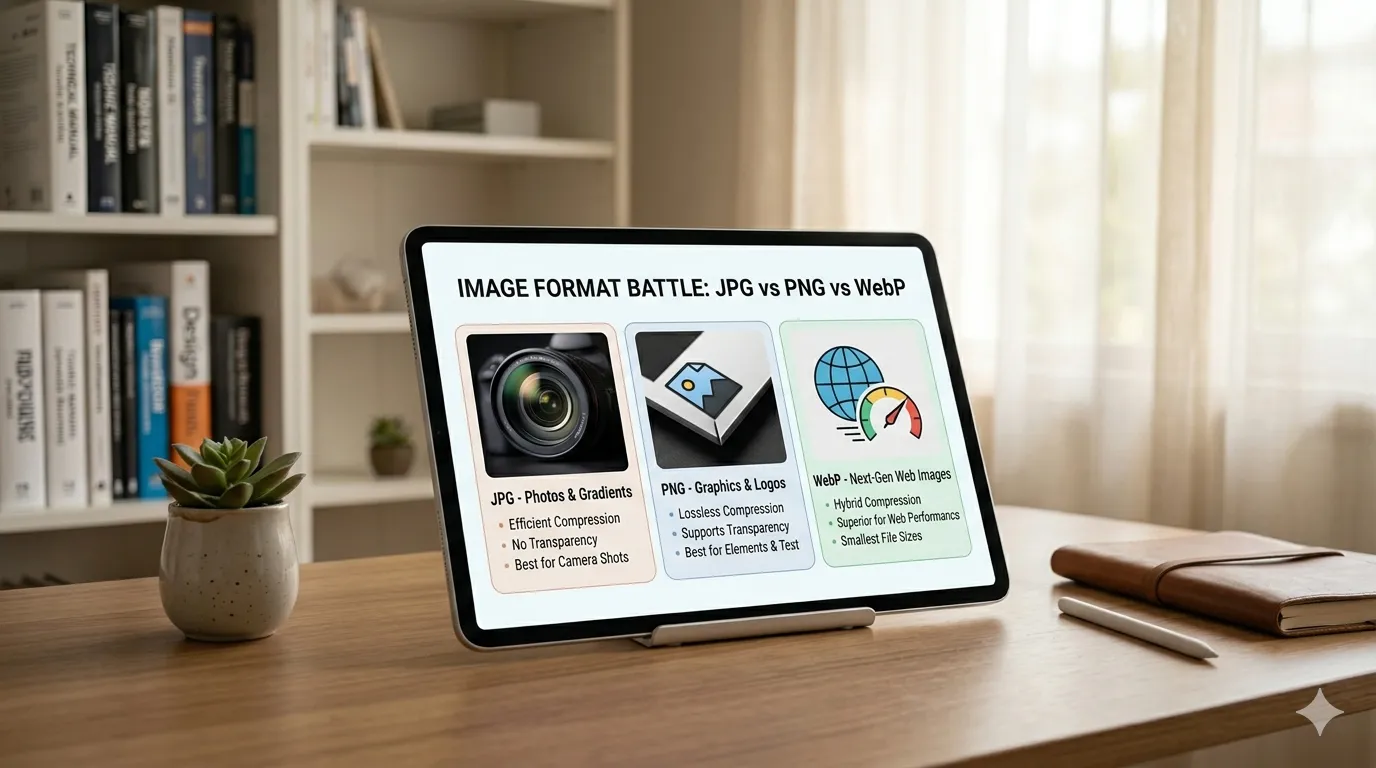
For everyday digital use, PNG with a transparent background is the most practical format. It works on websites, social media, presentations, and email signatures. If your free tool offers SVG export, download that as well — SVG is a vector format that scales to any size without quality loss, which you will need if you ever use the logo in print or at large dimensions. Avoid saving your primary logo file as JPG — it does not support transparency and introduces compression artefacts around edges that are particularly noticeable on logos.
Create a logo for your business in minutes — free, no watermarks, transparent PNG download.
Try the Free Logo Maker →