A two-minute video recorded on a modern smartphone can easily be 400–600MB. Try to email that, upload it to a client portal, or share it via WhatsApp and you will hit a wall immediately. Most email providers cap attachments at 25MB. WhatsApp compresses video so aggressively on upload that quality becomes unwatchable. Even uploading to Google Drive or Dropbox becomes slow and impractical at those file sizes.
The good news is that video files contain a significant amount of redundant data that can be removed without any noticeable difference when watching on a screen. This guide explains exactly how video compression works and how to reduce your video file size practically and for free.
Why Video Files Get So Large
Video file size is determined by four main factors: resolution, frame rate, bitrate, and duration. Understanding each one helps you make smarter compression decisions.
Resolution is the pixel dimensions of the video — 1080p (1920×1080), 4K (3840×2160), etc. A 4K video contains four times as many pixels as a 1080p video of the same length, which means roughly four times more data to store per frame. Recording in 4K on a smartphone when the video will only ever be watched on a phone or shared on social media is one of the most common causes of unnecessarily large video files.
Frame rate is how many individual frames appear per second (fps). Standard video is 24–30fps. Many modern phones shoot at 60fps or even 120fps for slow-motion. At 60fps, there are twice as many frames to store compared to 30fps, which means roughly double the data. For most social content, 30fps is indistinguishable from 60fps to the human eye.
Bitrate is the amount of data used per second of video, measured in Mbps (megabits per second). Higher bitrate means better quality but larger files. A raw 4K video might have a bitrate of 80–100Mbps. A compressed 1080p video optimized for web delivery might be 4–8Mbps — and look completely acceptable on any screen up to a large monitor.
Duration is straightforward — longer videos are larger. But many people don’t realize that a two-minute video compressed properly can be smaller than a 30-second uncompressed clip.
What Video Compression Actually Does
Video compression works by removing redundant information across frames. In most video, the background of a scene stays the same while only small elements (a person talking, a moving object) change between frames. Compression algorithms like H.264 and H.265 store only the parts that change, rather than saving a full new image for every single frame. This is why a compressed video looks almost identical to the original — the algorithm is smart about what to discard.
H.264 is the most universally compatible codec and works on virtually every device and platform. H.265 (HEVC) produces files roughly 40% smaller at the same quality, but requires more processing power to play and has less universal compatibility on older devices. For sharing purposes, H.264 is the safer default.
The Fastest Way to Compress a Video Online
For most people who need to compress a video quickly without learning software, a browser-based tool is the most practical solution.
- Open the Systemaxic Video Compressor
- Upload your video file — MP4, MOV, AVI, and MKV are supported
- Select your target quality level. “Medium” works well for most purposes. Choose “Low” only if you specifically need the smallest possible file and can accept some quality reduction
- If resolution reduction is available, dropping from 4K to 1080p or from 1080p to 720p will produce the most dramatic file size reduction
- Click Compress and download the result
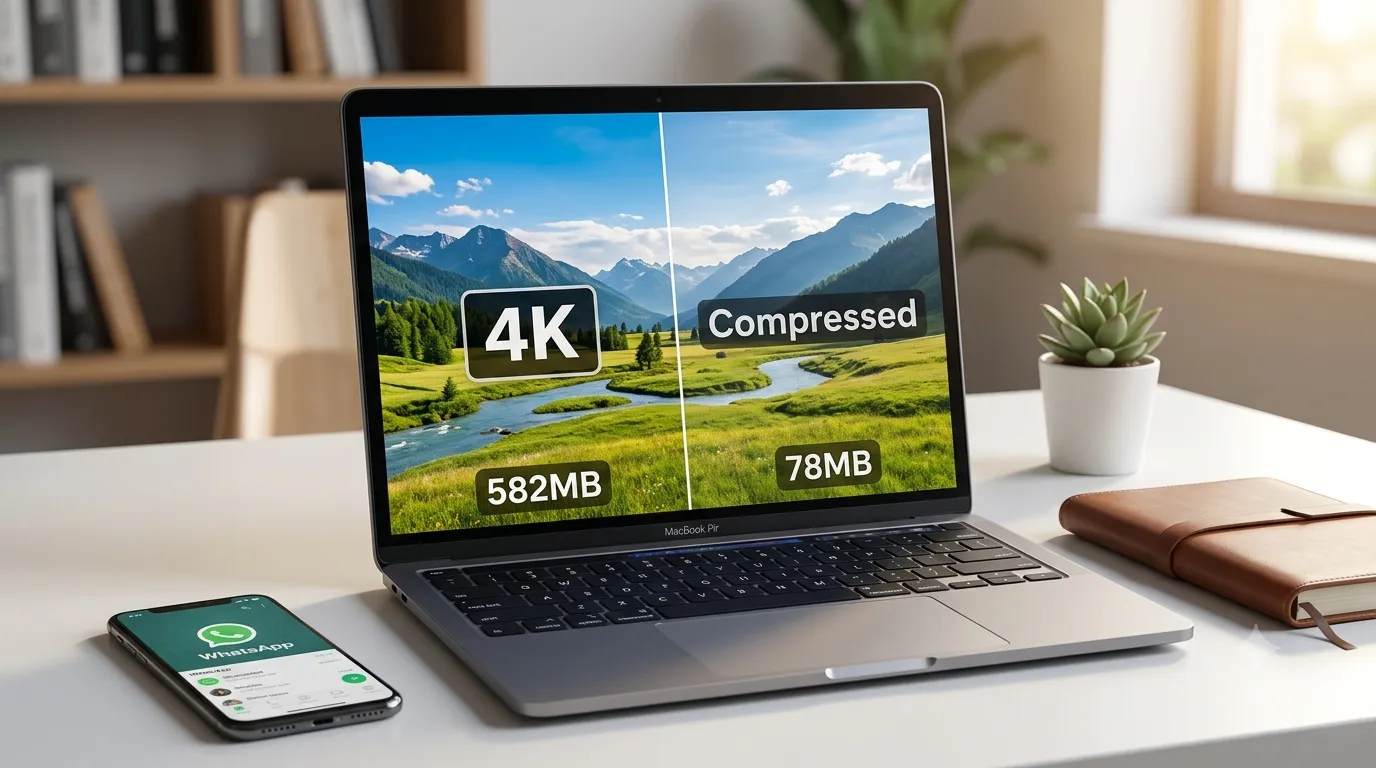
💡 What to expect: A 500MB 4K phone recording typically compresses to 50–100MB at 1080p without visible quality loss on a standard monitor. A 200MB 1080p recording usually compresses to 30–60MB at high quality settings.
Choosing the Right Settings for Different Purposes
Sharing via email or messaging apps: Target under 25MB. Drop resolution to 720p if needed, and use medium quality. For a short clip under 2 minutes, this is easily achievable without visible quality loss at normal viewing size.
Uploading to YouTube or Vimeo: These platforms re-encode your video after upload regardless of what you send. Uploading a higher quality source file actually produces a better final result on the platform. Compress just enough to make upload practical — aim for under 2GB for uploads under 30 minutes.
Embedding on a website: This is where aggressive compression matters most. Website videos should ideally be under 10MB for short clips, and definitely under 50MB for anything. Video that plays directly on a webpage without buffering significantly improves engagement.
Sending to a client for review: Client review files can be moderately compressed — quality matters but so does their ability to open and play the file. 720p at high quality is usually a good balance for review purposes.
Archiving originals: Do not compress archive copies. Keep originals at full quality and only compress export copies for specific use cases. Storage is cheap; re-shooting a video is not.
When Browser-Based Compression Is Not Enough
Browser-based tools work well for most everyday compression tasks. However, if you are working with very long videos (over 30 minutes), need frame-accurate editing during compression, want to change codecs or container formats specifically, or are processing videos professionally, desktop software gives you more control. HandBrake is a free, open-source desktop tool that provides detailed compression settings and handles almost any video format. For professional workflows, Adobe Media Encoder or DaVinci Resolve are the industry standards.
⚠ What not to do: Do not repeatedly compress the same video file. Each compression cycle removes more data. Always compress from your original high-quality source, not from a previously compressed version. Re-compressing an already-compressed video causes visible quality degradation (blocky artefacts, colour banding) with very little additional file size reduction.
Frequently Asked Questions
What is the best video format for sharing online?
MP4 with H.264 encoding is the most universally compatible format for sharing online. It plays on virtually every device, browser, messaging app, and platform without any special software. MOV files (Apple’s default) are high quality but less compatible with Android and Windows devices. AVI and MKV files are large and have poor universal compatibility for sharing purposes. When in doubt, convert to MP4 before sharing — most video compressors offer this as an output option.
Will compressing a video affect the audio quality?
Video compression primarily targets the video stream. Audio is usually compressed separately and at a much lower data cost — a full minute of high-quality stereo audio is typically only 1–3MB even at excellent quality. Most video compression tools preserve audio at its original quality or apply very light audio compression that is inaudible. If you notice audio quality issues after compression, look for a setting in the tool to maintain or increase the audio bitrate (128kbps or higher is standard for good audio quality).
Why does WhatsApp make my video look so bad when I send it?
WhatsApp compresses all video files automatically before sending, regardless of the quality you recorded or compressed yourself. Its compression algorithm is aggressive and optimized for fast delivery over mobile data rather than quality. The result is often noticeably blurry, especially for videos with motion or fine detail. The only way to share a video through WhatsApp at acceptable quality is to keep it very short (under 30 seconds) and already well-compressed before sending. For longer videos or quality-sensitive content, share via Google Drive, Dropbox, or WeTransfer link instead.
Does video resolution actually matter if I’m just sharing on social media?
Less than most people think. Instagram, TikTok, YouTube Shorts, and Facebook all display video at resolutions that max out around 1080p for most users. Uploading a 4K video to Instagram provides no visible benefit over a 1080p upload — the platform down-samples it anyway. Where resolution does matter is for content that people will watch on large screens, zoom into, or download for other uses. For most social media content, 1080p at high quality is the optimal balance of file size and visual quality.
Compress your video directly in the browser — no software, no upload limits for most files.
Compress Video Free →